A PDF can look correct in the editor and still be the wrong attachment for an application. Check the exact file you download, its text, and its last page before uploading it. This guide separates the checks you can do yourself from claims a quick file check cannot establish.
The short answer
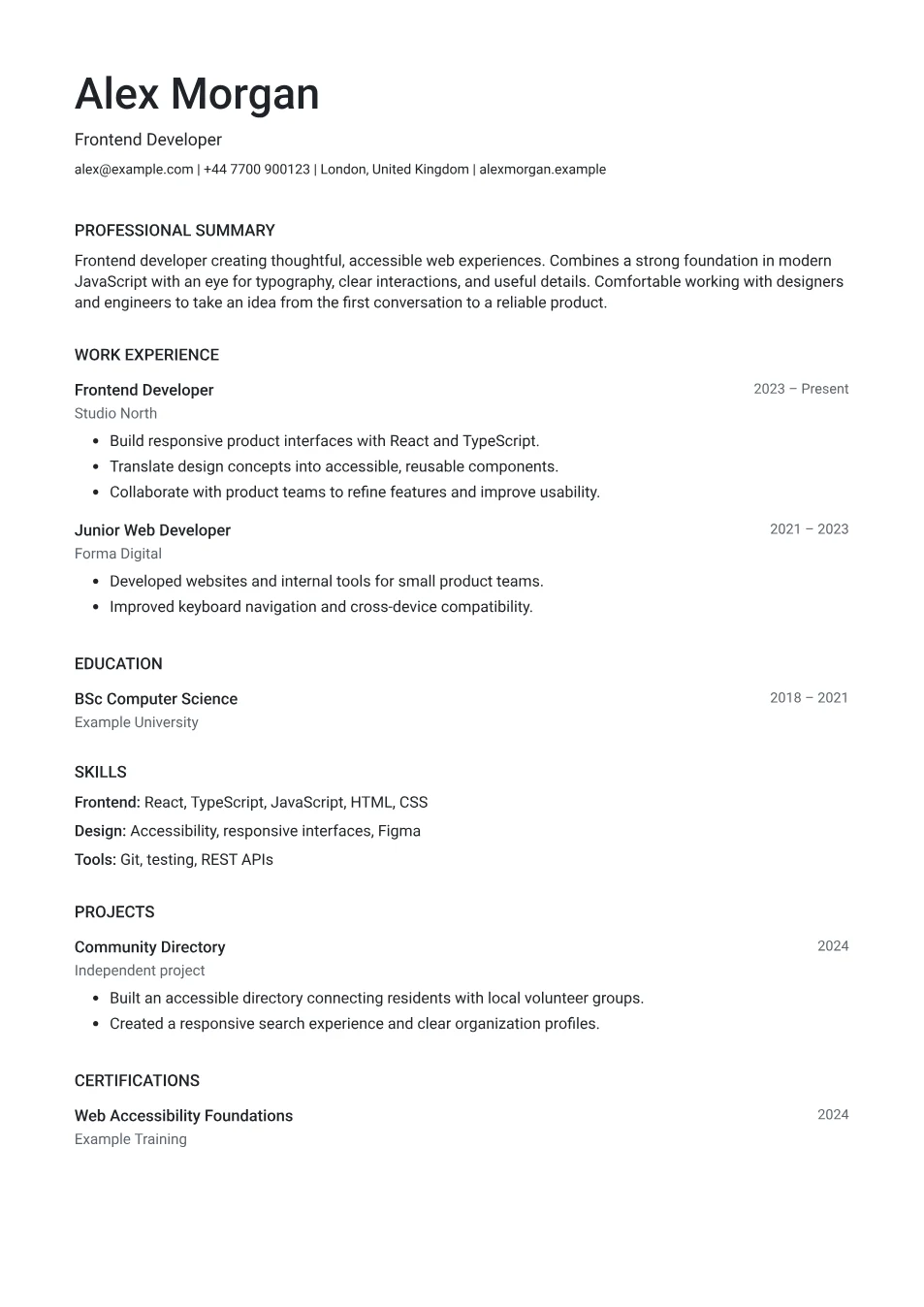
Follow the employer's format request, download the CV, and open that exact file. Check contact details, page breaks, links, and copied text. Text selection is a basic check; it does not certify accessibility or guarantee parsing. Keep an editable draft separately.
See the worked exampleWorked example: diagnose a nearly empty second page
Suppose the last page contains only one repeated skills line and a references sentence. Read those lines before changing the design. If they add no useful evidence and are not requested, edit them out. If the page contains a relevant project, keep the content and review spacing instead. A second page is not automatically a mistake.
Download again after editing and compare the new file. Changing a filename does not update the document inside it. When an application fills fields from an upload, review the fields as well as the attachment; they are two separate things to check.
Read the file instructions before exporting
Find the employer's file type, size limit, and naming instructions. If the application asks for DOCX or answers entered directly into a form, a PDF is not a substitute. Keep a note of the requirements beside the advert rather than relying on what you used for a previous application.
Folio's CV download is an A4 PDF. Importing a Word document does not create a Word-export option. If a specific paper size is required, check that requirement before submitting; the separate cover letter tool offers A4 and US Letter, but the CV editor uses A4.
Review every page, including the last one
Scroll through the full preview at a readable size. Look for a short final page, an unusually dense paragraph, or a heading that seems separated from its explanation. Check that hidden sections really should be hidden and that imported entries have not been put in the wrong section.
Shorten repeated wording before changing spacing. If you try another template, review its page count again because the same text can occupy different space. Read how to keep a CV focused if a few leftover lines are creating an unnecessary extra page.
Check text extraction and reading order separately
Download the PDF and open it in a PDF viewer. Confirm that the name, email address, dates, and links are correct in that file. Select a paragraph and copy it into a plain text note to inspect the wording and reading order. This is a practical check, not proof of compatibility with every hiring system.
Copying text is only a basic check. Adobe's accessibility guidance also covers document tags and logical reading order; text selection alone does not establish accessibility. Greenhouse separately documents parsing difficulties with complex layouts. Folio exports selectable text, but this guide does not certify its PDFs as accessible or guarantee parsing in an employer's system.
Sources: Adobe: Creating accessible PDFs; Greenhouse Support: Unsuccessful resume parse
Name the file so you can recognise the application
Use the filename the employer requests. Otherwise, a short name such as Alex-Morgan-CV.pdf is easy to recognise. For your own records, put each application in a separate folder with the advert, cover letter, and submission date. Avoid relying on a growing stack of files named final or latest.
Open the attachment from the draft email or upload preview if the system allows it. That checks the selected file rather than the file you meant to select. Do not overwrite the only record of an application after sending it; keep that version for interview preparation.
Keep your editable draft separately
A PDF is a finished output, not your full editing history. Save a browser draft or download Folio's portable JSON draft before closing the tab. You can restore that draft later, update the wording for another vacancy, and download a new PDF without starting over.
For the final application review, use the before-you-send checklist. Export checks answer whether the file is complete and usable; your content review answers whether it is the right document for this role.
Check the file you will actually send
- The employer accepts the file type and any required paper size.
- The PDF opens and contains the latest name, contact details, and dates.
- Every page ends sensibly and the last page contains useful content.
- Text can be selected and copied in a readable order.
- The attachment or upload preview shows the intended version.
Frequently asked questions
Does Folio add a watermark to the PDF?
No. The downloaded CV has no watermark, and downloading does not require an account or payment.
Does selecting PDF text prove ATS compatibility or accessibility?
No. It checks that text can be selected. Reading order, document structure, and the particular system still matter. Keep a portable JSON draft if you want the original editable Folio data.
Sources and further reading
Sources checked on . Examples are fictional; practical suggestions are Folio's own application of the guidance.